
VanBelkum›Starpeer UC
Starpeer UC cloud phone system
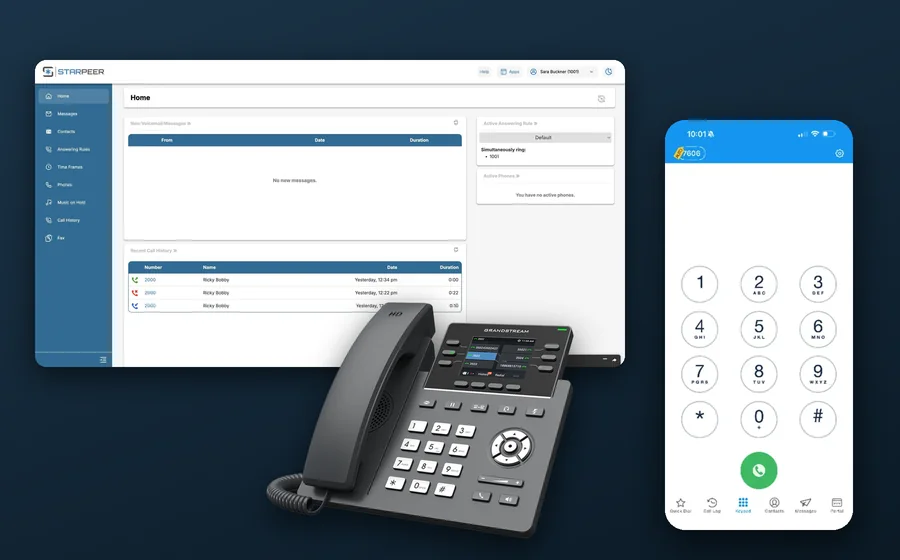
Your business phone system, run in the cloud by VanBelkum. Desk phones, a mobile app, and a phone in your browser all ring the same extension, and you change your own hours, holidays, and greetings from one portal.
What’s included
One extension, wherever you work.
Every Starpeer UC user gets an extension that rings on the desk, in the app, and in the browser, with the company’s caller ID on every outbound call.
Phones on the desk
Yealink and Grandstream desk phones and cordless handsets, set up by us. Program coworker and speed-dial buttons yourself from the portal.
The ConnectWare app
Your desk phone in your pocket, on iPhone and Android. Calls go out with the company caller ID, not your personal cell number.
WebPhone in the browser
Make and take calls from Chrome or Edge on a PC or Mac. Nothing to install, and no desk phone needed.
Fax from the portal
Receive, forward, and send faxes from the same portal you use for your phone. No fax machine, no separate login.
Auto attendant
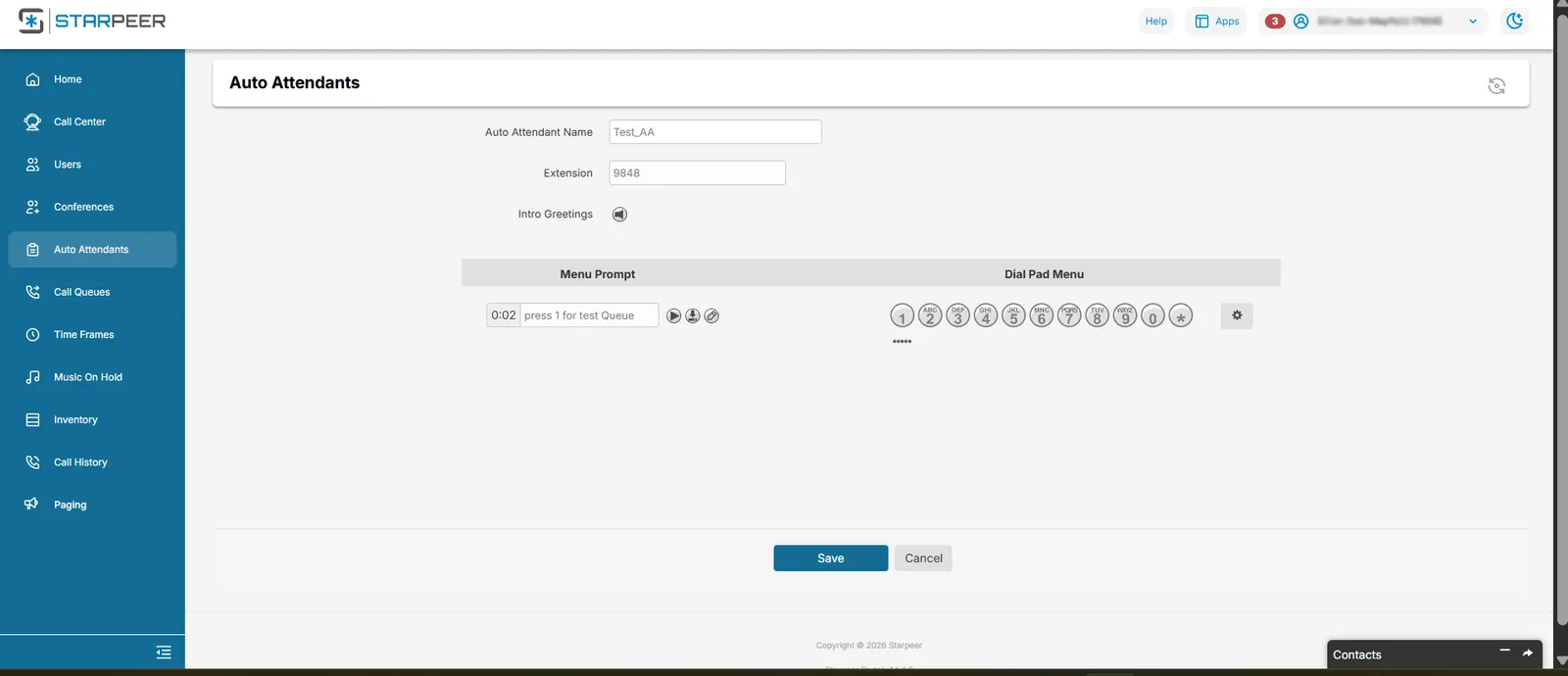
“Press 1 for sales.” A professional greeting that answers and routes calls around the clock, by time of day and by holiday.
Chat and text messaging
Chat with coworkers, and text customers from the business number when texting is turned on for your company.
Mobile app
Your desk phone, in your pocket.
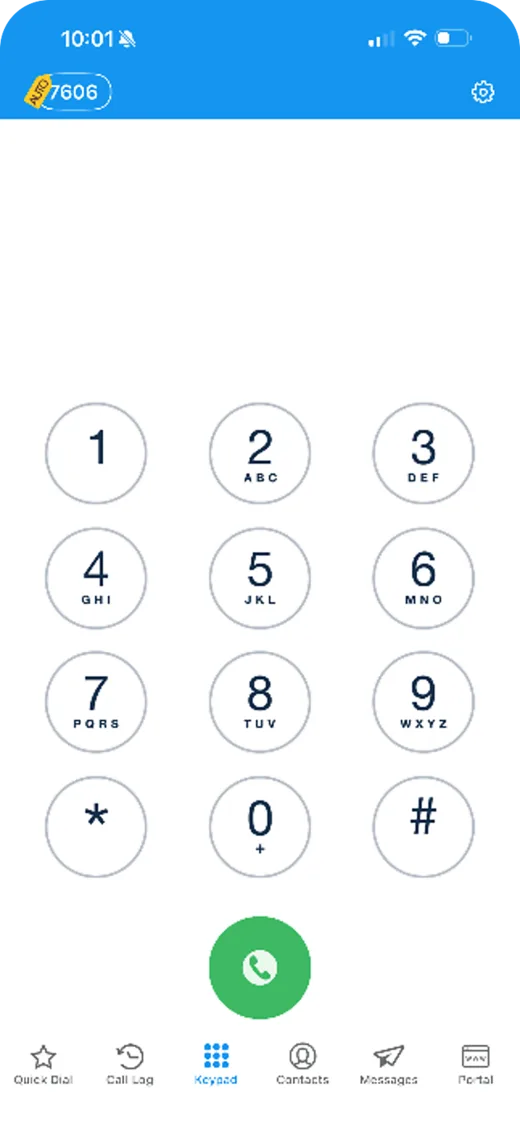
ConnectWare signs in with the same username and password as the phone portal. There is no separate mobile login.
Call like a desk phone
Dial outside numbers or a coworker’s extension from the keypad. The caller sees the company number.
Call log and voicemail
Every call, missed call, and voicemail in one tab.
Quick Dial with busy status
Pin the coworkers you call most. Each one shows on a call, off call, or Do Not Disturb before you dial.
Do Not Disturb
Silence the app with one switch, or dial *76 to go unavailable everywhere, desk phone included.
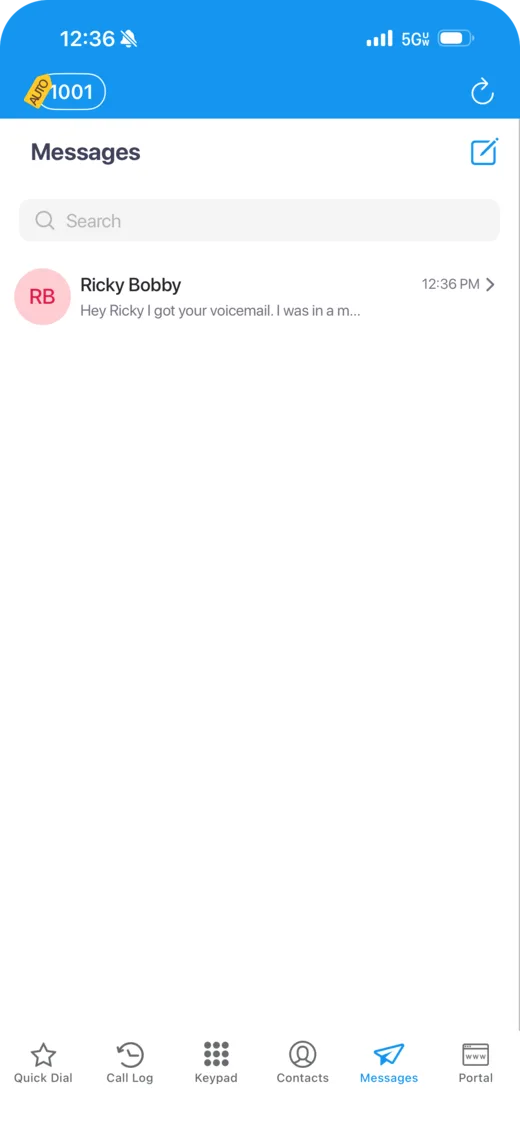
Messages
Internal chats, plus SMS conversations when texting is on for your company.
WebPhone
Calls from your browser.
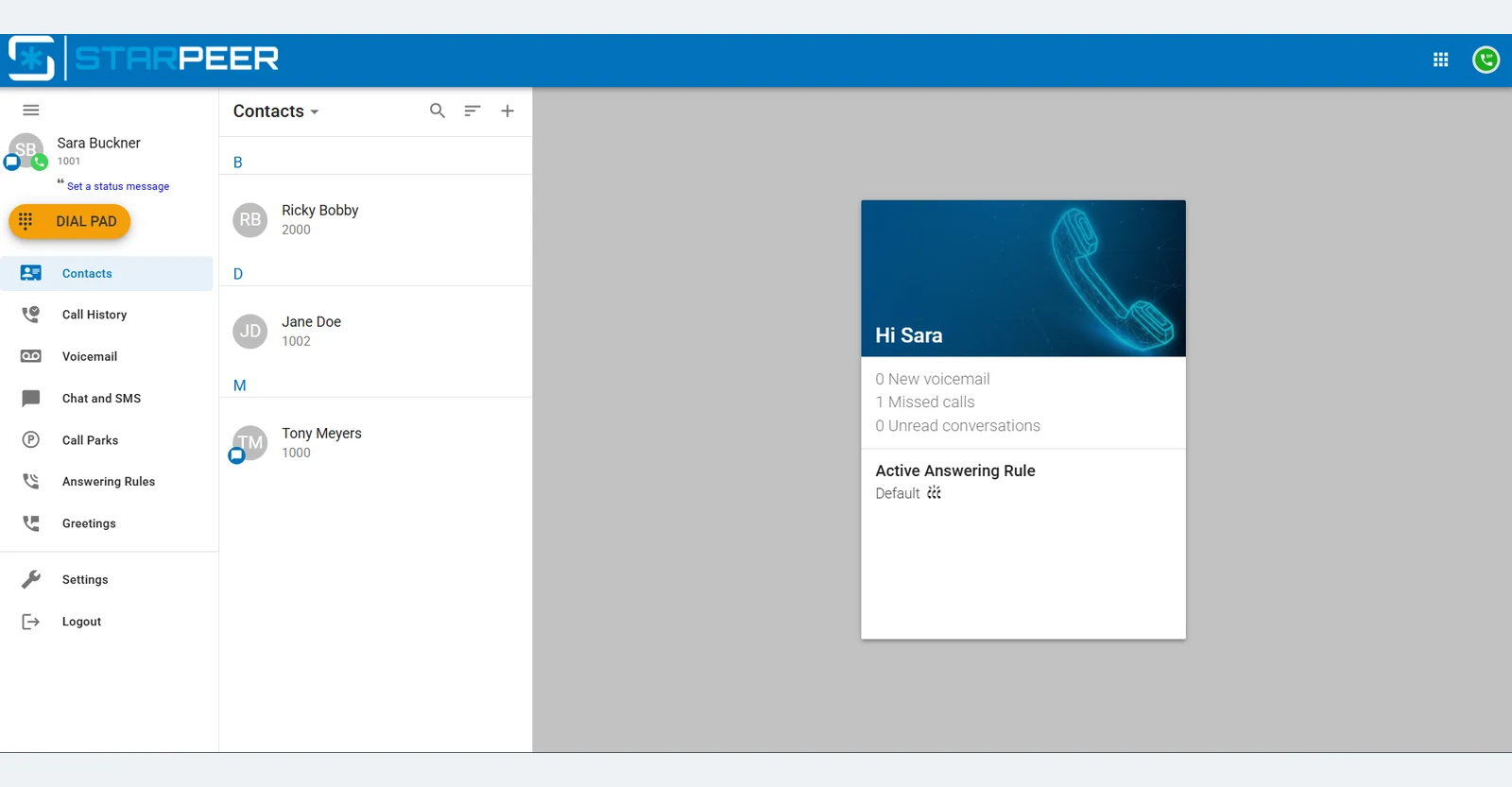
Open the WebPhone from the Apps menu in the phone portal. Set up your headset once, and the computer becomes your phone.
- Nothing to install. It runs in Google Chrome or Microsoft Edge on a PC or Mac.
- Same login as the phone portal.
- Headset or built-in mic and speakers. A headset gives callers the clearest sound.
- Pop-up alerts for incoming calls and messages, even while you work in another tab.
- Contacts, call history, voicemail, and chat in the same window.
Fax
Fax without the fax machine.
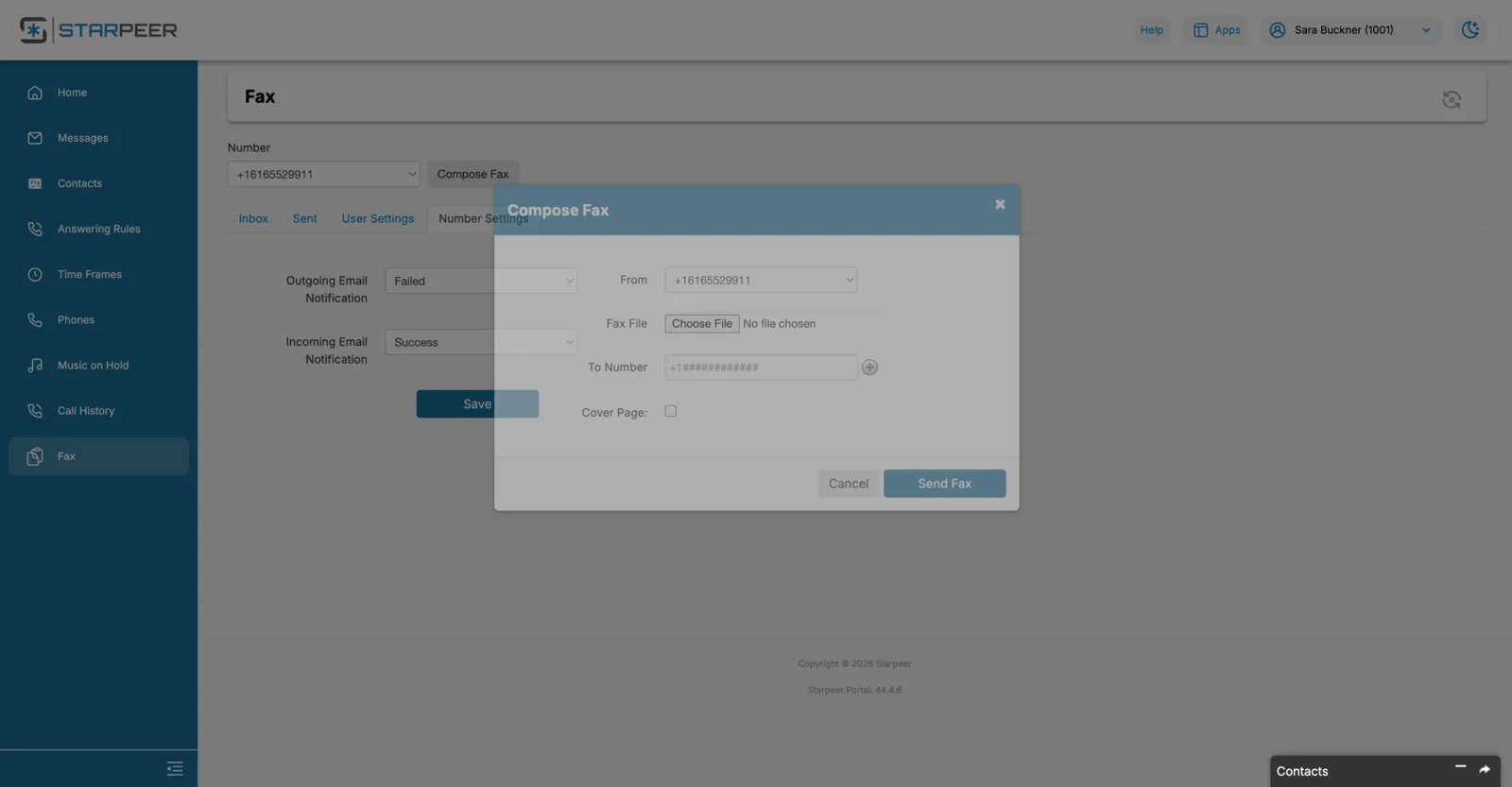
Fax lives inside the phone portal, under the same login.
Inbox
Every received fax with sender, page count, and time. Preview, delete, or forward it.
Forward to a number or an email
Send a fax on to another fax number, or as an email attachment.
Compose and send
Attach a file, enter the fax number, add a cover page if you want one, and send. The Sent tab shows whether it went through.
Email alerts
Get an email when a fax arrives, or when one you sent fails.
Self-service portal
Change your hours yourself. Today.
Closing early for a holiday or adding a new menu option no longer means a service call. Users manage their own phone; admins manage the company’s call flow.
For every user
- Voicemail and call history in a browser
- Answering rules decide what rings, and where, when you are busy or away
- Greetings for your own voicemail
- Contacts for the whole company
- Phone buttons: set up coworker (busy light) and speed-dial buttons and save them to the phone
For admins
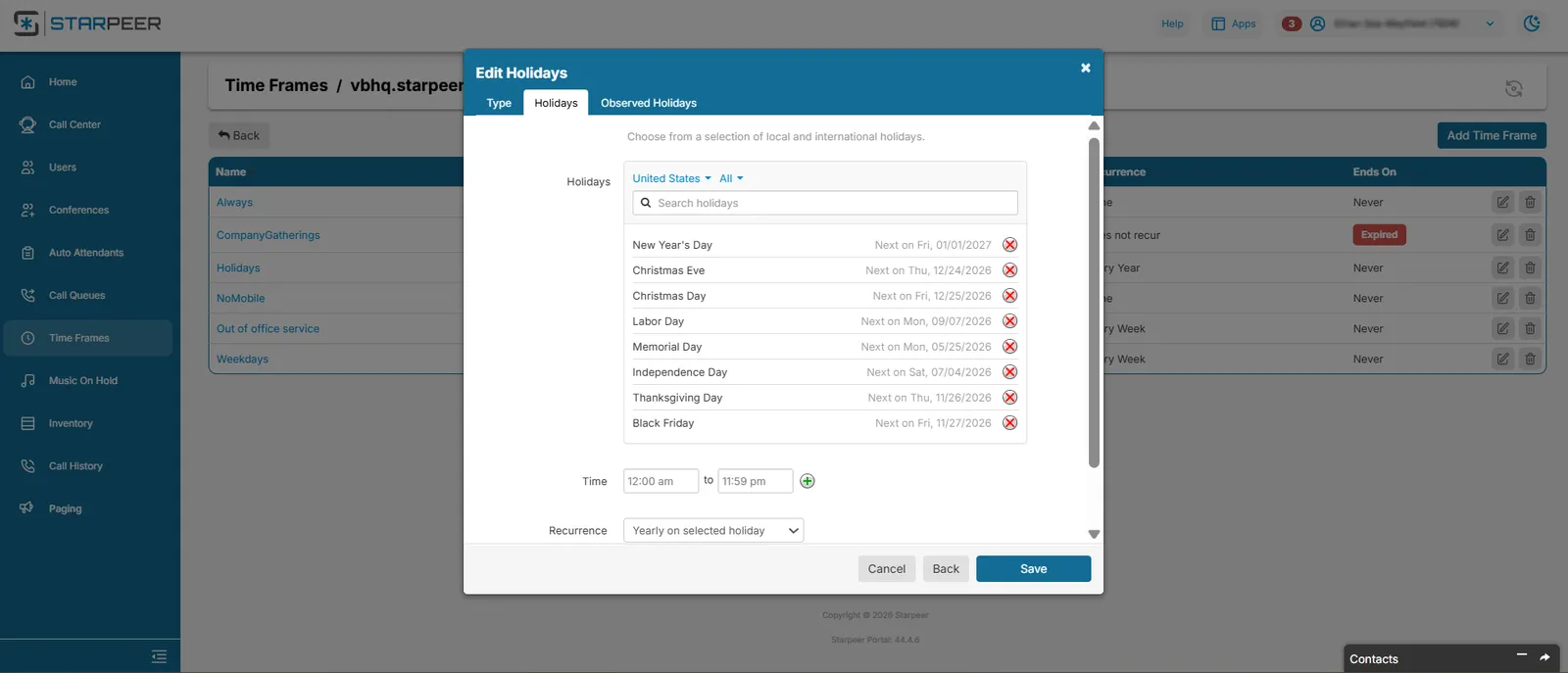
- Time frames and holidays: business hours, plus US holidays picked from a list and set to repeat every year
- Auto attendants: the greeting and the dial-pad menu callers hear
- Call queues and music on hold
- Users and fax access for the whole organization
- Set up a coworker’s buttons from their phone in the Users list
Moving from FreePBX or an old PBX
We build it. You approve it. Your team keeps working.
Time to move from FreePBX? Or an on-premises PBX that needs patching, backups, and hardware that eventually fails? Starpeer UC runs in the cloud, and VanBelkum maintains it. We map your current call flows and extensions first, so day one looks like the day before.
You approve
We review your current system and send a quote for the new one. Sign it, and that is your part.
We configure
Same numbers, same extensions, same call flows unless you ask for changes. We reset phones, confirm the network is ready, and test.
Go live
A planned cutover, with training for your team. Callers keep dialing the numbers they know.
Timeline: from same day to two weeks. Let us help you convert.
Security and reliability
- No PBX in your closet to patch, back up, or replace
- Geo-redundant: runs across multiple data centers, and calls reroute if one has a problem
- SOC 2 and HIPAA compliant
- Guaranteed uptime SLA
- Keep your phones where you can. Many existing desk phones carry over; we check each model during the review.
Phones we install
A phone for every desk.
Keep the phones you have where they are supported, or upgrade. We supply, set up, and support the hardware.
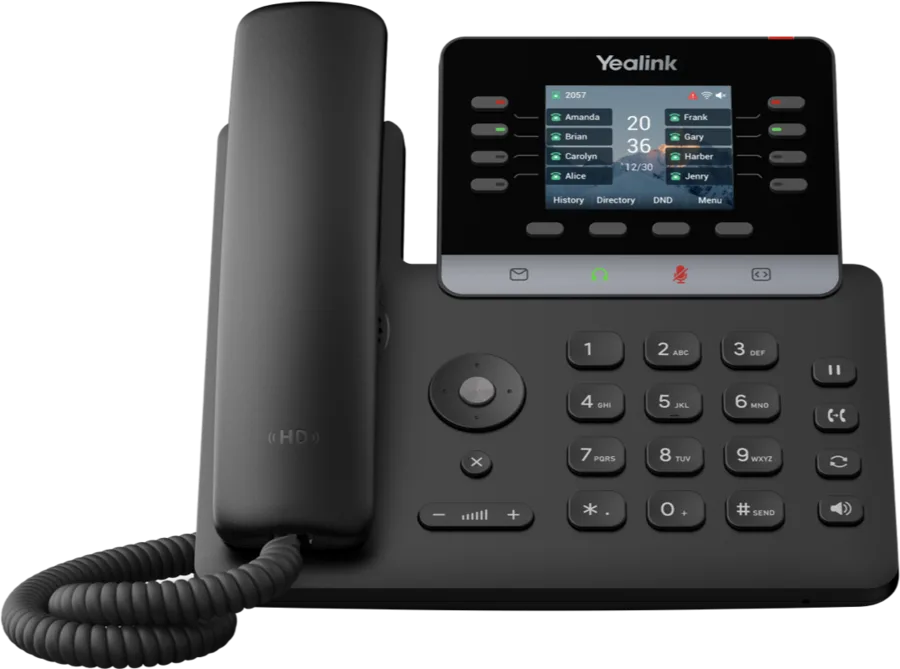
Yealink T73W
Entry-level desk phone with Wi-Fi, for most desks.
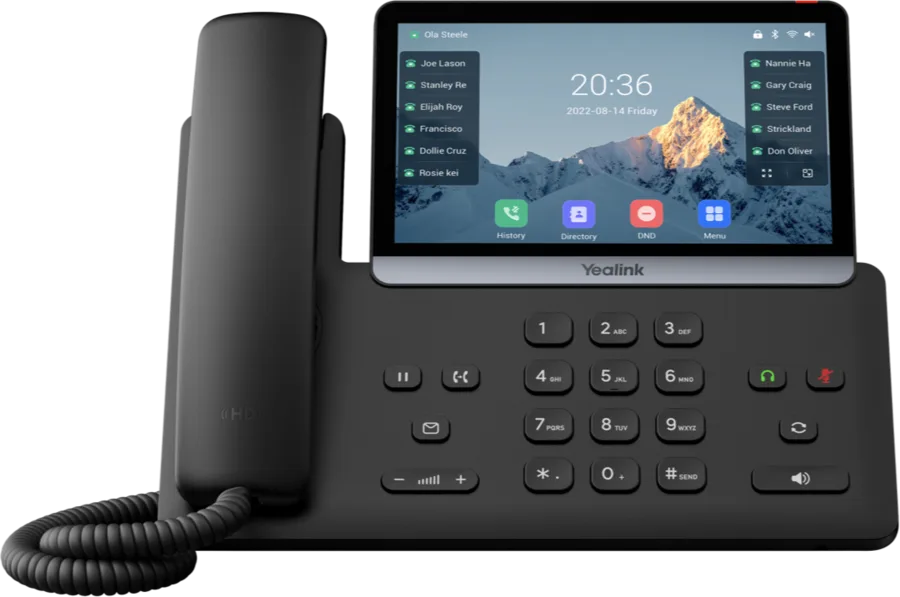
Yealink T77U
Executive touchscreen phone.
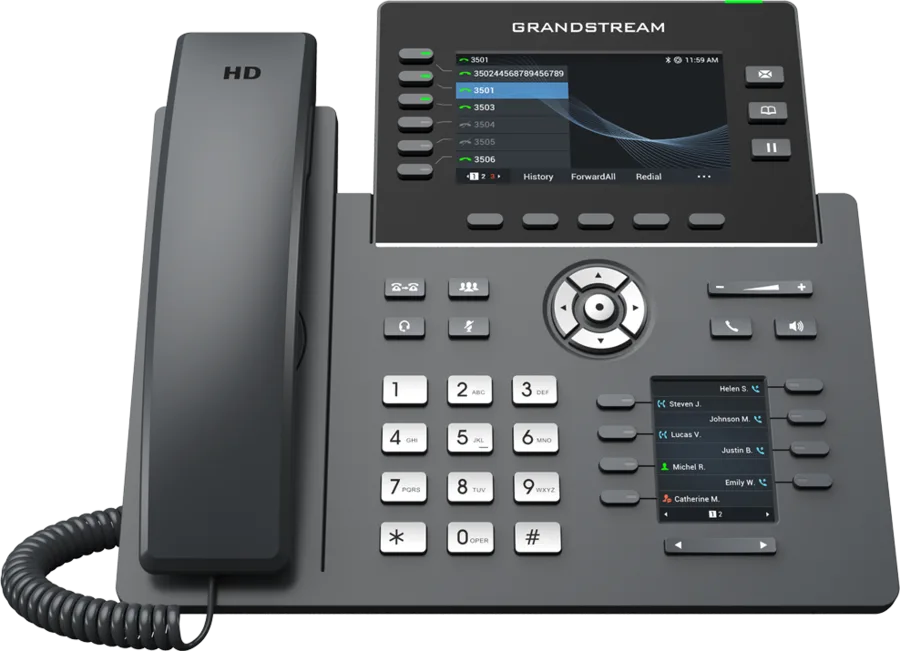
Grandstream GRP2616
Six-line phone for reception and power users, with buttons that show who is on a call.
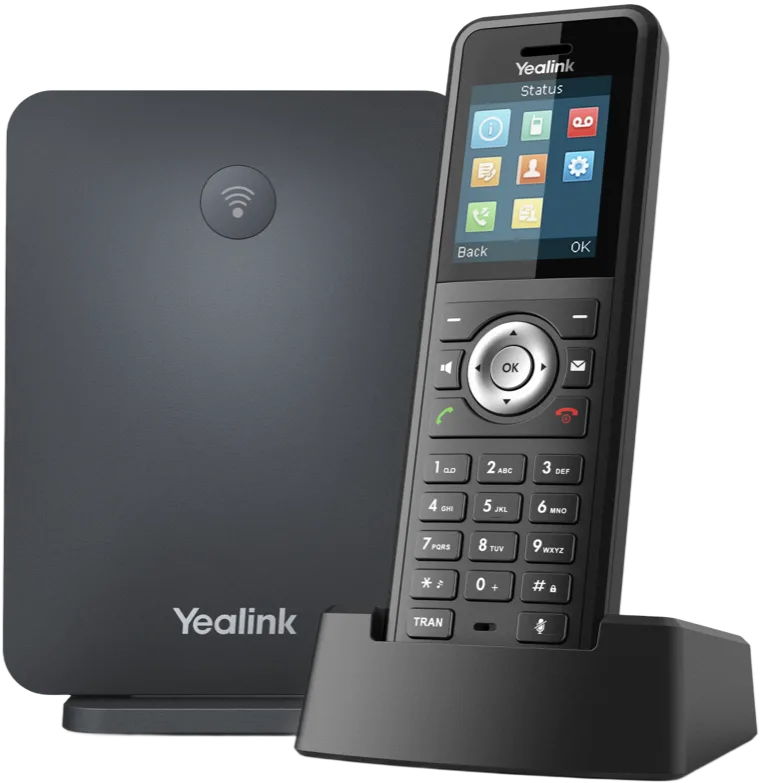
Yealink DECT cordless
A base and handsets for people who walk the floor, the shop, or the warehouse.
Support and training
A local team, and guides for every screen.
Call (616) 301-7676 and a VanBelkum tech who knows your system picks up. Your team also gets step-by-step guides on VanBelkum Help, with real screens in the order you use them.
All Starpeer guides
The phone system, the mobile app, fax, and the desk-phone hardware.
ConnectWare on your iPhone
Calling, Do Not Disturb, call log and voicemail, contacts, Quick Dial, and messaging.
The WebPhone in your browser
Open it from the portal, set up your headset, and fix “No microphone”.
Fax from the phone portal
Inbox, forwarding, Sent, settings, and Compose Fax.
Program your phone buttons
Coworker buttons, speed dials, clearing buttons, sidecars, and saving to the phone.
Factory reset a DECT base
Yealink W60B and W70B: from the base itself, or from any registered handset.
Contact
Tell us about your phones.
How many people, how many locations, and what you run today. We’ll map it to Starpeer UC and send a quote. West Michigan-based team.